
Open HEVC Video in Your Browser

Choose an H.265 or HEVC file from your computer and try it in the browser first. If you need a hevc player online, the page tests native playback and falls back when needed.

Build a local playlist

Choose HEVC videos to open in the online player

Select one video or several files. The hevc online player opens a dedicated playback page and places supported local files in a playlist.

Or drop multiple videos here

Supports MP4, MOV, M4V, MKV, .hevc, .h265, and other recognized video files.

Your videos stay on this device and are handed to the player only inside this browser tab.

  • Local file only

    Built for a file you already have, not for a remote conversion queue.

  • Native playback first

    When the browser and system can decode the file directly, the player uses that path.

  • Private by default

    The workflow stays local before you decide on any heavier step.

  • Compatibility fallback

    If native decoding is unavailable, the player can switch to compatibility mode.

Windows note: Chrome and Edge may play HEVC better after Microsoft HEVC Video Extensions are installed, but the site tries the file first.

Person moving a local video file into a private browser player.

Local processing stays first

Start with the file on your computer.

Native decoding when possible

Check native first.

Compatibility mode when needed

Use a browser fallback when native playback fails.

Clear limits instead of vague promises

Explain where audio, container, profile, resolution, or DRM can block playback.

Open HEVC Video Online Without Turning a Local File Into a Server Upload

People searching for a hevc video player usually already have a file and one question: can I open this HEVC video right now? That is the intent behind searches like open hevc file online: a direct check, not a media-management platform.

Here, “online” means a browser interface, not a remote upload. The goal is to open HEVC video locally, test playback, and explain the next step with a practical hevc video player rather than a vague chart.

Person opening local video files inside a protective on-device shield.

What this page is for

  • Quick local review

    Open a clip you already have and decide whether you really need another player or conversion step.

  • Temporary access

    Use the browser on a work PC, borrowed laptop, or locked-down environment.

  • Format diagnosis

    Separate container, browser, and audio-track problems instead of treating every failure as “HEVC does not work.”

  • Windows optimization

    Guide Windows users toward the official HEVC extension only when native playback would benefit.

Film frames compressed into smaller video frames through a visual funnel.

What Is HEVC Video?

HEVC (High Efficiency Video Coding), also called H.265, compresses video efficiently while preserving quality. That is why it is common in 4K capture, HDR workflows, phone recordings, surveillance, and compact archives.

A common point of confusion is the difference between a codec and a container. HEVC describes how the video stream is encoded, while MP4, MOV, and MKV describe the file container around it. Opening an HEVC file therefore means checking both the video codec and the packaging.

Phone, action camera, security camera, and editing display connected to a video creator.

Where HEVC Video Is Used

You may encounter HEVC before you choose it. Phones use it to save storage, cameras use it for higher-end recording modes, delivery teams use it for smaller review files, and surveillance systems use it to reduce storage pressure.

Those patterns explain why browser playback can feel inconsistent. A short iPhone clip, a 10-bit HDR camera master, and a long security recording stress the browser differently.

Phones and tablets

iPhone and iPad recording modes often produce HEVC video to save space.

Cameras and creators

Mirrorless cameras, drones, screen recorders, and exports use HEVC for high-end workflows.

Monitoring and storage-heavy systems

Long-running capture systems benefit from HEVC when storage pressure is constant.

Review and delivery handoff

Studios, agencies, and product teams deliver HEVC previews because they are smaller to move around.

Why Use an Online HEVC Video Player?

Person opening a local video directly in a browser instead of installing old software.

A browser-based tool shortens the path from “this file will not open” to “I know what to do next.” It works like a hevc video opener online for your file: try it immediately, avoid a heavyweight install, and see whether this machine has a playback path.

The browser does not replace every desktop workflow. Large 4K, Main10, HDR, or hardware-accelerated review pipelines may still need a native player; this page is a private first step for users who search hevc viewer online free because they want to avoid login, payment, and server upload requirements.

How Our Browser HEVC Video Player Works

The player is designed around practical detection. It starts from the local file you provide, reads enough structure to understand the likely container and stream layout, and tests the playback path available in this browser.

If native playback succeeds, the browser stays on that simpler path. If it fails or only partly works, the page can prepare compatibility mode for the file you are trying to open.

Local playback path from file selection through inspection, decoding, and browser playback.
Step 1

Inspect the local file

Read the selected file and gather playback details such as container shape and track presence.

Step 2

Probe native playback

Try the real browser path first so the page can tell whether native decoding is available for the current file.

Step 3

Prepare compatibility mode

If native playback is unavailable, initialize a browser fallback so the video has a second chance to open.

Step 4

Report the limit clearly

When playback still fails, show whether the blocker is likely container support, audio support, memory pressure, or codec limits.

Native Playback, WASM Compatibility, and the Windows HEVC Extension

Native playback means the browser and operating system can decode the file directly. Compatibility mode uses browser-based software decoding when that path is missing. Microsoft’s HEVC Video Extensions may improve native playback on supported Windows setups.

Native playback is usually more efficient and better for longer sessions. Compatibility mode broadens access, but may use more CPU and memory. The extension is an optimization path for Windows users, not a mandatory first step.

For Windows users who need the native path

If Windows reports that native HEVC playback is unavailable, Microsoft’s official HEVC Video Extensions may help.

Get Microsoft HEVC Video Extensions
Hardware and software decoding paths converging on the same browser video player.

Native path

Best when the browser and system already support the file. It usually offers smoother playback and lower power use.

Compatibility path

Useful when you need to open the video in-browser but the native media stack cannot handle it directly.

Windows codec path

Relevant only for users whose Windows setup can benefit from the official HEVC extension and whose target browser is able to use that system capability.

Compatibility, Privacy, and Known Limits

Browser playback still has honest limits. Container support can vary even when the video codec is HEVC; unsupported audio can block full playback; and high-resolution, high-bitrate, Main10, or HDR material can overwhelm software decoding.

The privacy promise is narrow and practical: opening the file should not require a server upload, login gate, or payment step before playback begins.

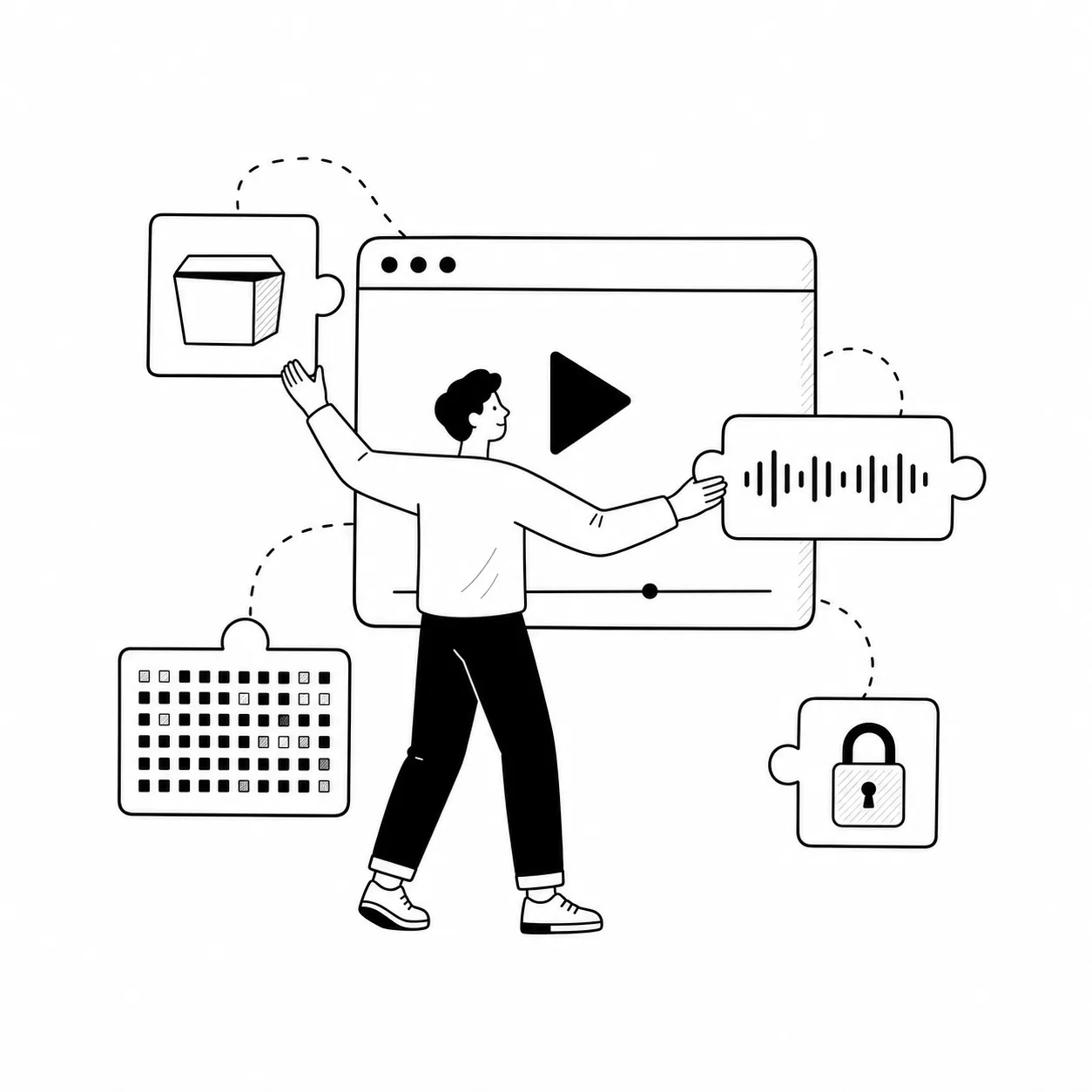
Technician fitting container, audio, resolution, and protection pieces around a video player.

Container and stream layout

Two HEVC videos can behave differently when their containers differ.

Audio support can fail separately

A clip may show playable HEVC video but no sound if the audio codec is unsupported.

Software decoding has practical ceilings

Large 4K files, long recordings, or high-bitrate exports may run less smoothly in compatibility mode.

Protected streams are a separate problem

This workflow targets ordinary local files, not DRM-protected commercial streams or media pipelines that depend on licensed playback stacks.

Frequently asked questions

Built for local HEVC playback in the browser, with clear next-step guidance.

Person inspecting a browser video and common playback questions with a magnifying glass.

Open another file?

Go back to the player, choose another clip, and compare results before any heavier workflow. That is what a hevc online player should do.

Person watching a local video on a laptop inside a protective shield.